
Gate

Cashback Rate (%)

75%

User Guide

Maker Fee

0.02%

0.02%

Taker Fee

0.05%

0.05%

Create Account

Cashback timing

Cashback accumulates after you sign up for an exchange and link it to your dashboard.

How to link your exchange

After signing up for an exchange, upload your UID and a photo of your USDT (TRX) wallet address on the Heymore dashboard. The link will be completed within 1 hour.

Important Note

Once you sign up for an exchange and link it to the dashboard, you can claim your refund through a cashback request after trading.
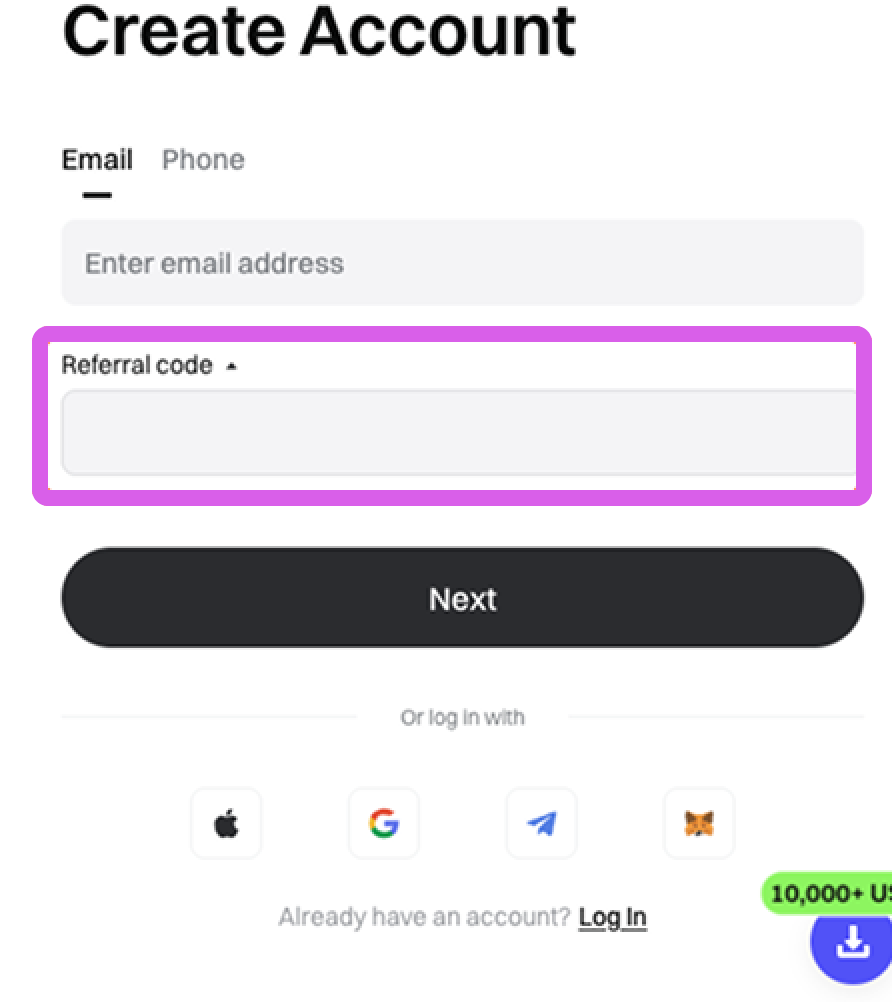
Sign up guide

Select the "Sign up with referral code" button below

First, click "Sign up with referral code" to go to the Gate registration page.

Verify Code and Enter Information

After confirming that the Heymore code has been entered, please sign up using your email or mobile phone number.
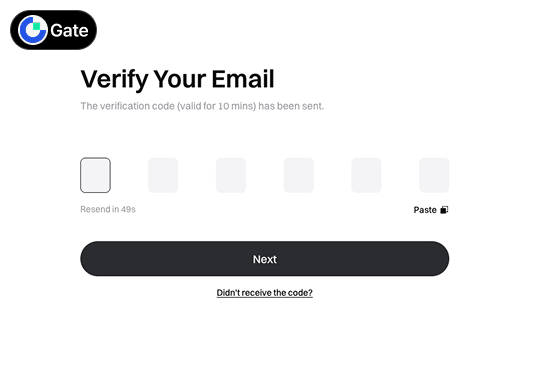
Enter verification code

Please enter the 6-digit verification code sent via email or SMS.
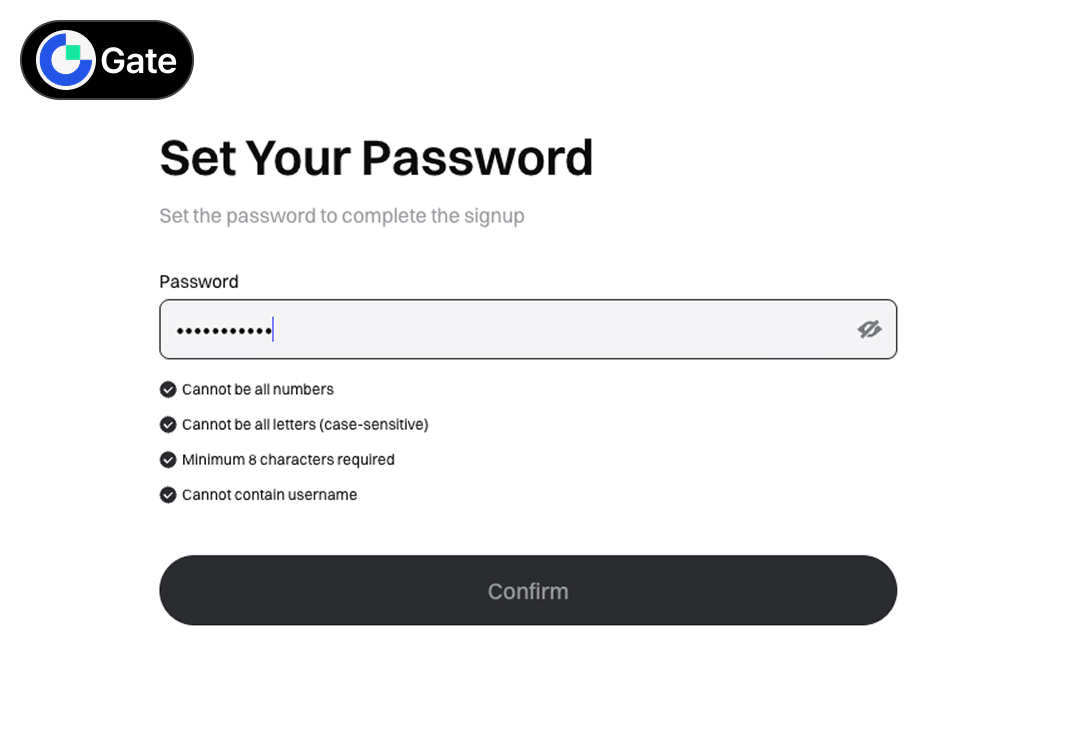
Set password

Passwords cannot consist of numbers only; they must be at least 8 characters long, including a mix of uppercase and lowercase letters, and cannot include your username.
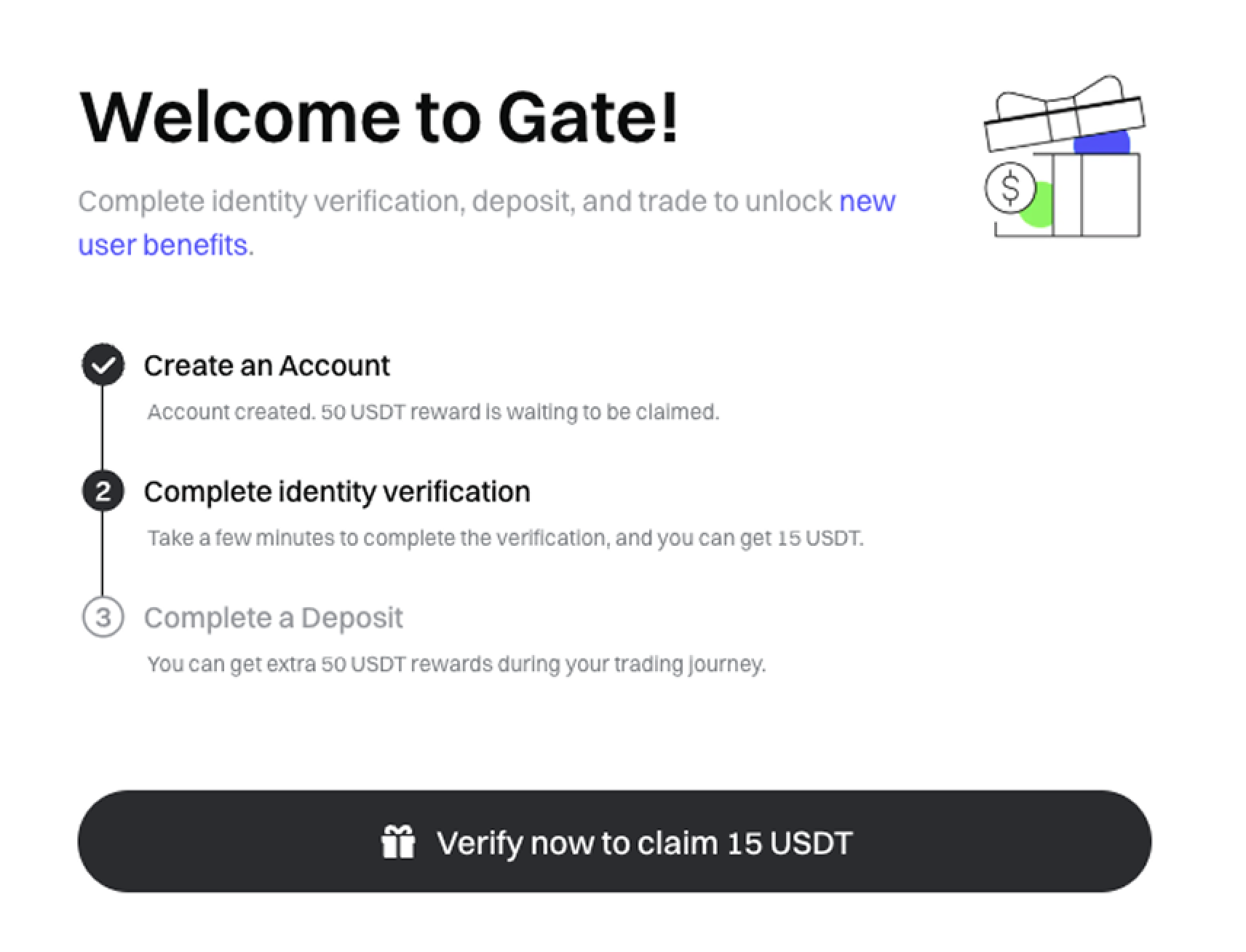
Sign-up Complete

Registration has been successfully completed.
How to verify KYC

How to link your UID

How to change KYC

Checklist before changing (deactivating) KYC

All assets withdrawnPlease confirm that all remaining assets, including coins and USDT, have been withdrawn from your account.
Unlink phone/email verificationPlease unlink your registered phone number and email for security integration.
Disable 2FA authenticationPlease disable 2FA security authentication such as Google Authenticator or Authy.
Delete API KeysIf you are using trading automation programs (API), please delete your API keys.

Precautions

This exchange does not directly support KYC changes. We recommend contacting customer support to check if KYC information can be changed or reset before deactivating your account.

Go to the Account Deletion Page

After logging in to Gate, please visit the address below to proceed with account deletion. https://www.gate.com/cancel_account
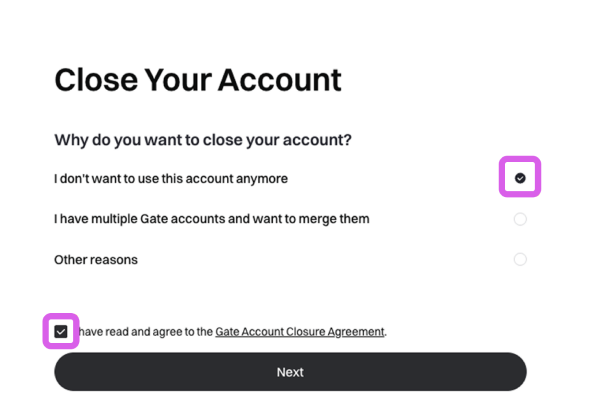
Select Reason for Withdrawal

Select "I do not want to use this account anymore" and then click [Next].
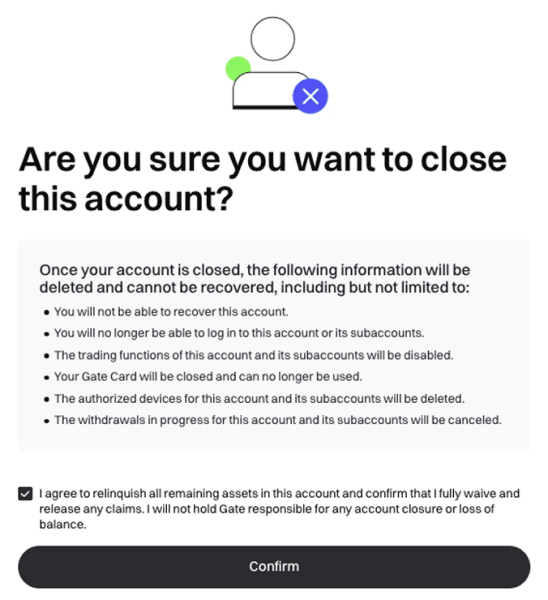
Confirmation and Agreement

Review the instructions, check the box, and then select the [Confirm] button.
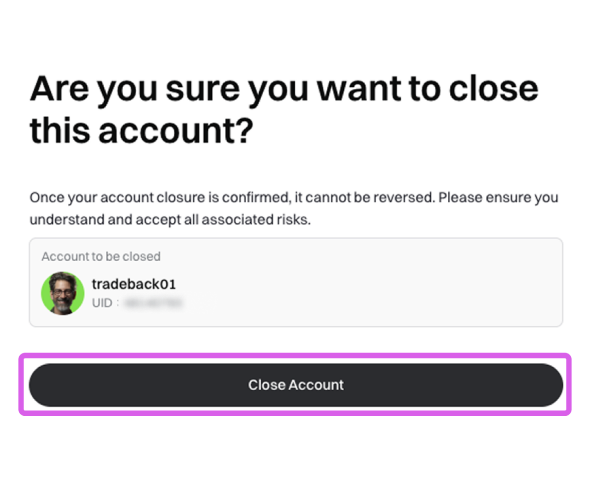
Confirm Account Deletion Information

Check the account details, and if it is the correct account to delete, click the [Close Account] button.
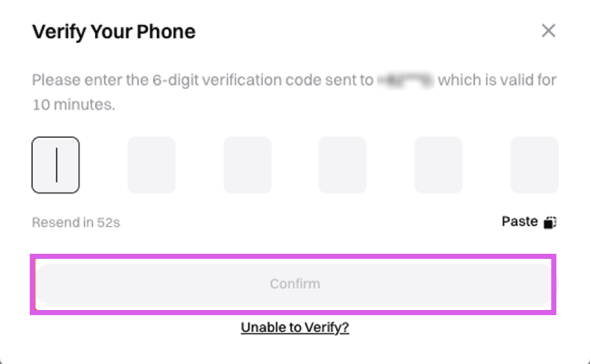
Security Verification

Finally, please verify the code sent to your email or mobile phone.
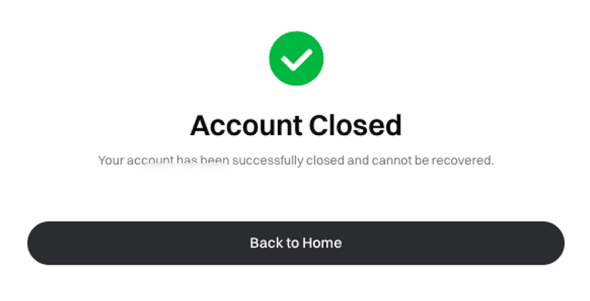
Account Deletion Complete

Account deletion has been successfully completed.

After completing the account deletion

Once the account deletion is complete, please proceed with KYC verification again on your new account registered with the Heymore referral code.