
Cashback timing
Cashback accumulates after you sign up for an exchange and link it to your dashboard.
Cashback accumulates after you sign up for an exchange and link it to your dashboard.
After signing up for an exchange, upload your UID and a photo of your USDT (TRX) wallet address on the Heymore dashboard. The link will be completed within 1 hour.
Once you sign up for an exchange and link it to the dashboard, you can claim your refund through a cashback request after trading.
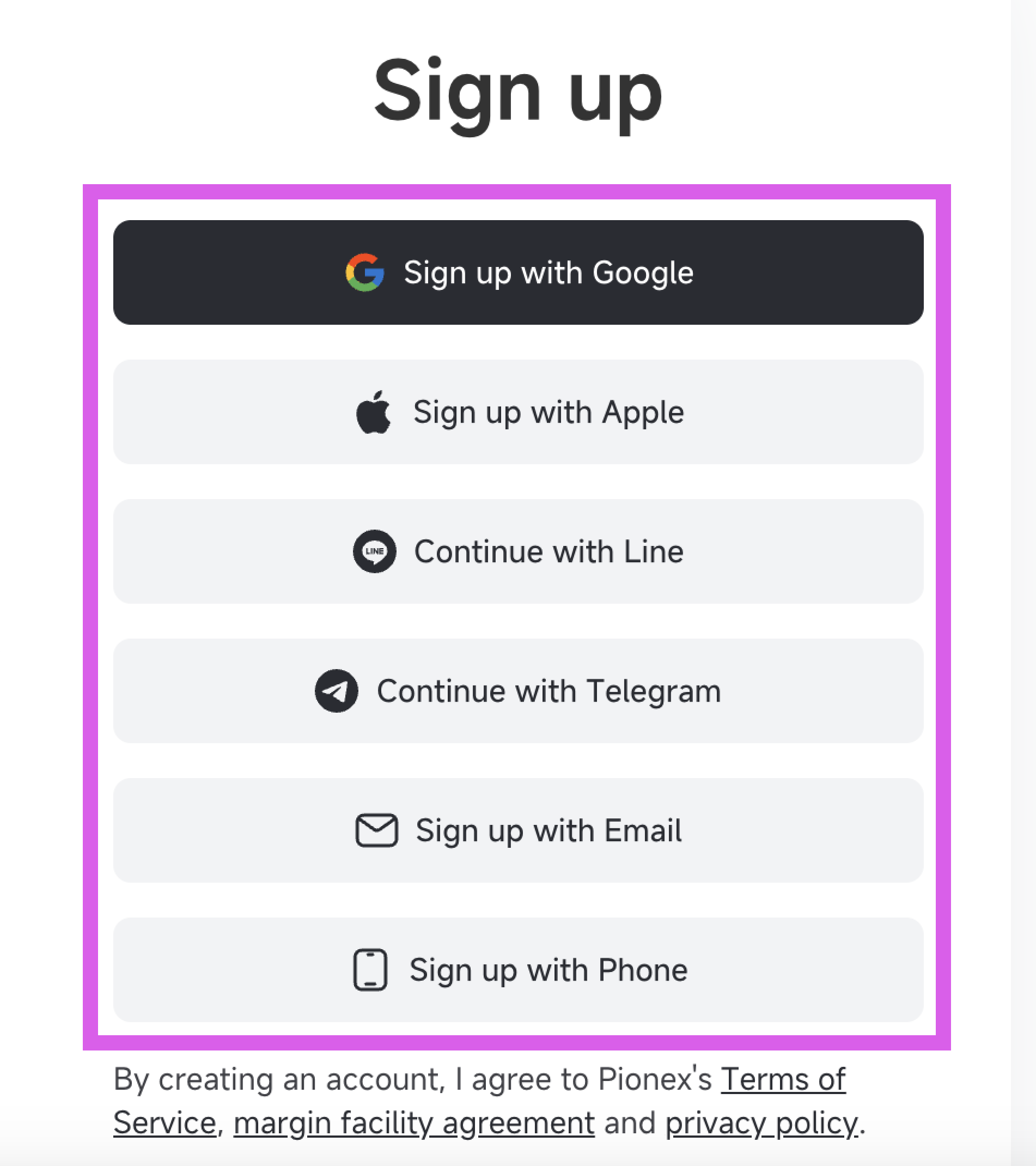
Please choose between social media, email, or mobile registration to proceed.
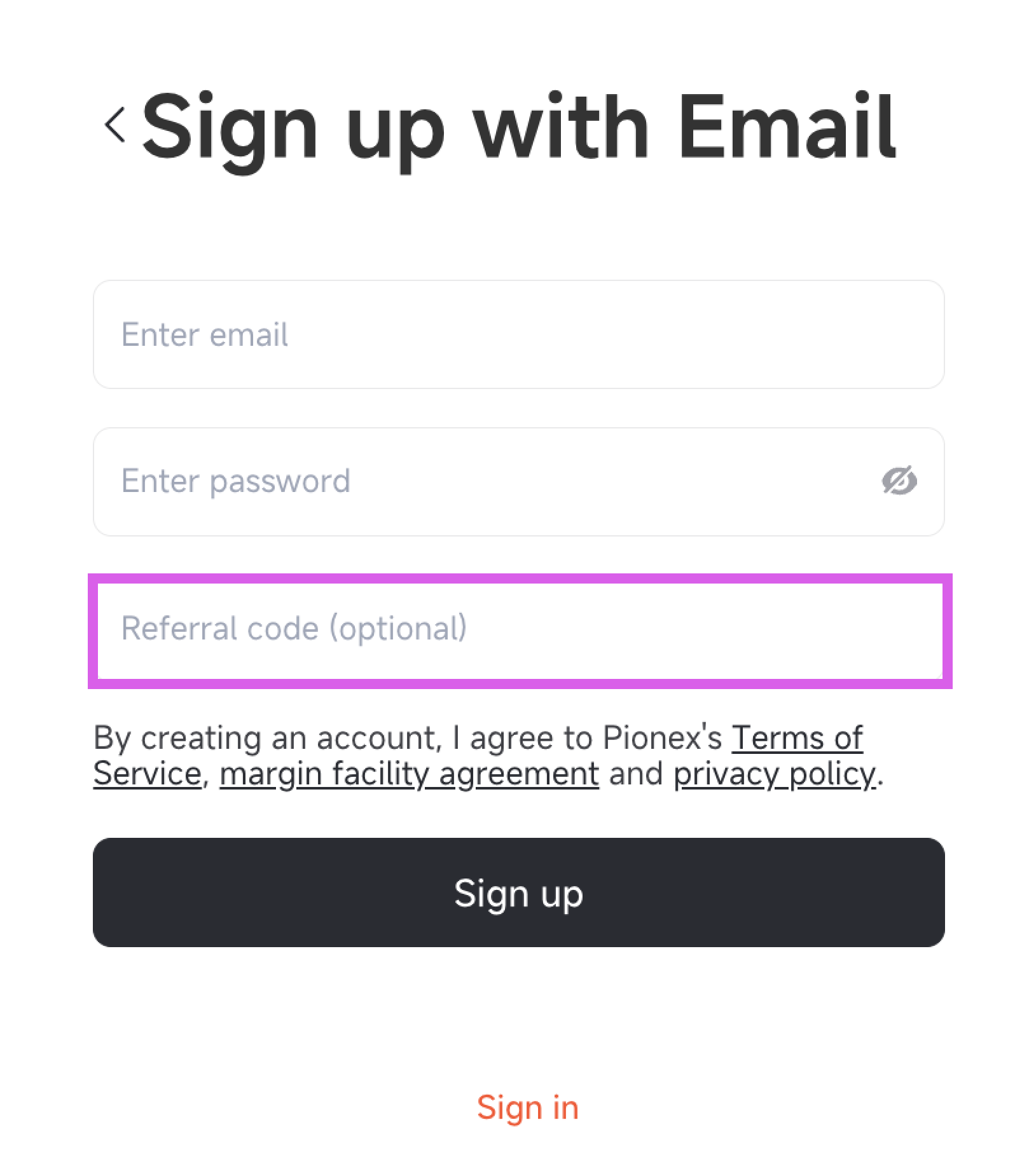
Confirm that the Heymore code has been entered correctly, then click [Sign up].
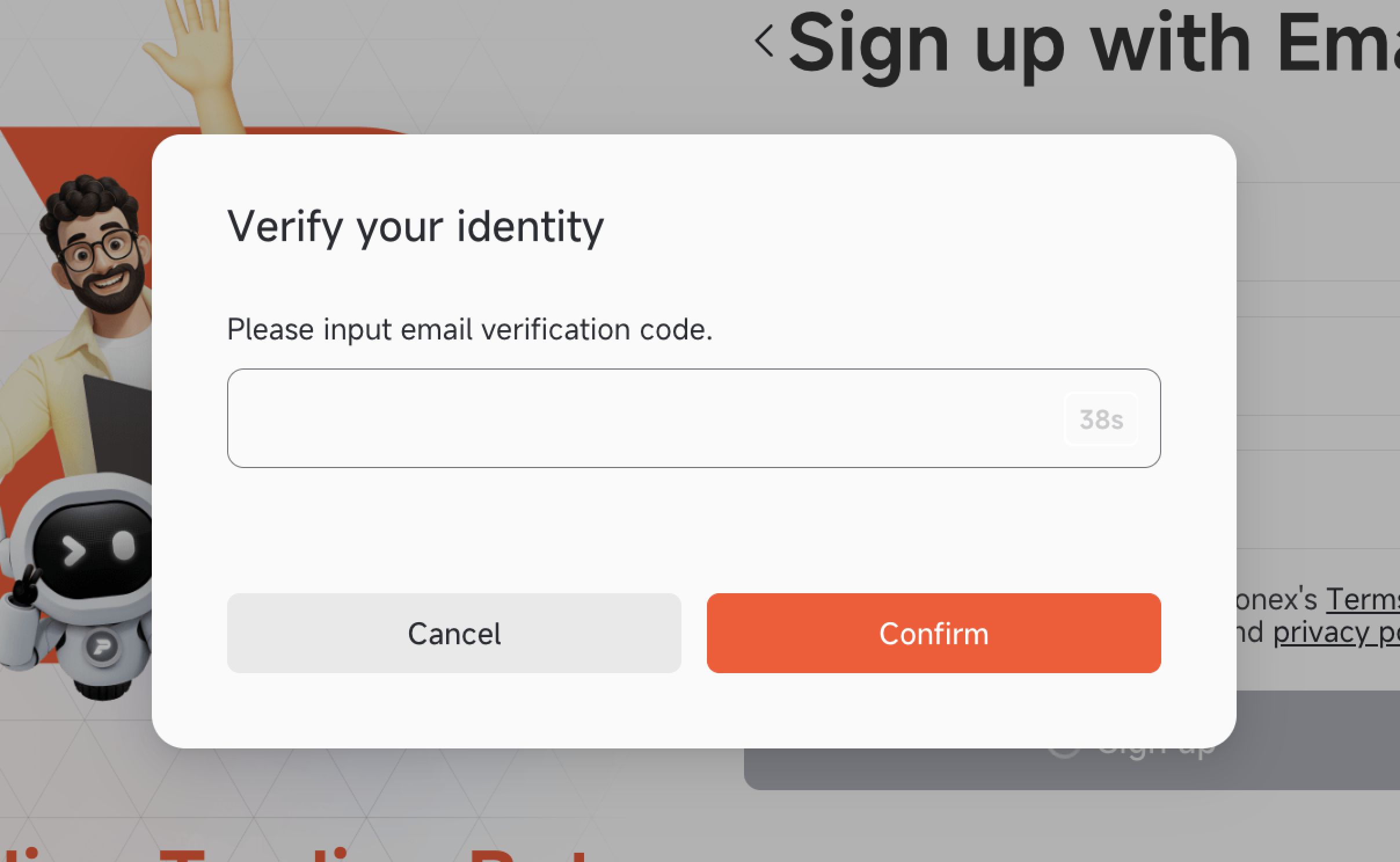
Please check your email or phone to complete the verification.
Registration will be completed once the verification is finished.
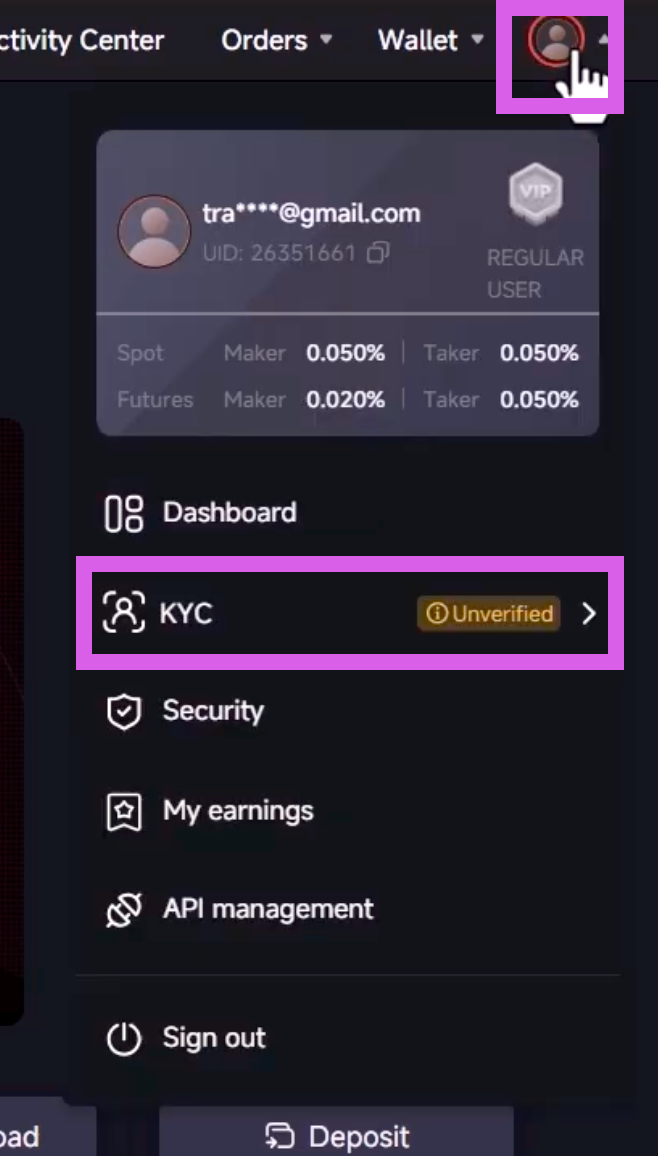
Click the person icon in the top right corner and select [KYC] from the dropdown menu.
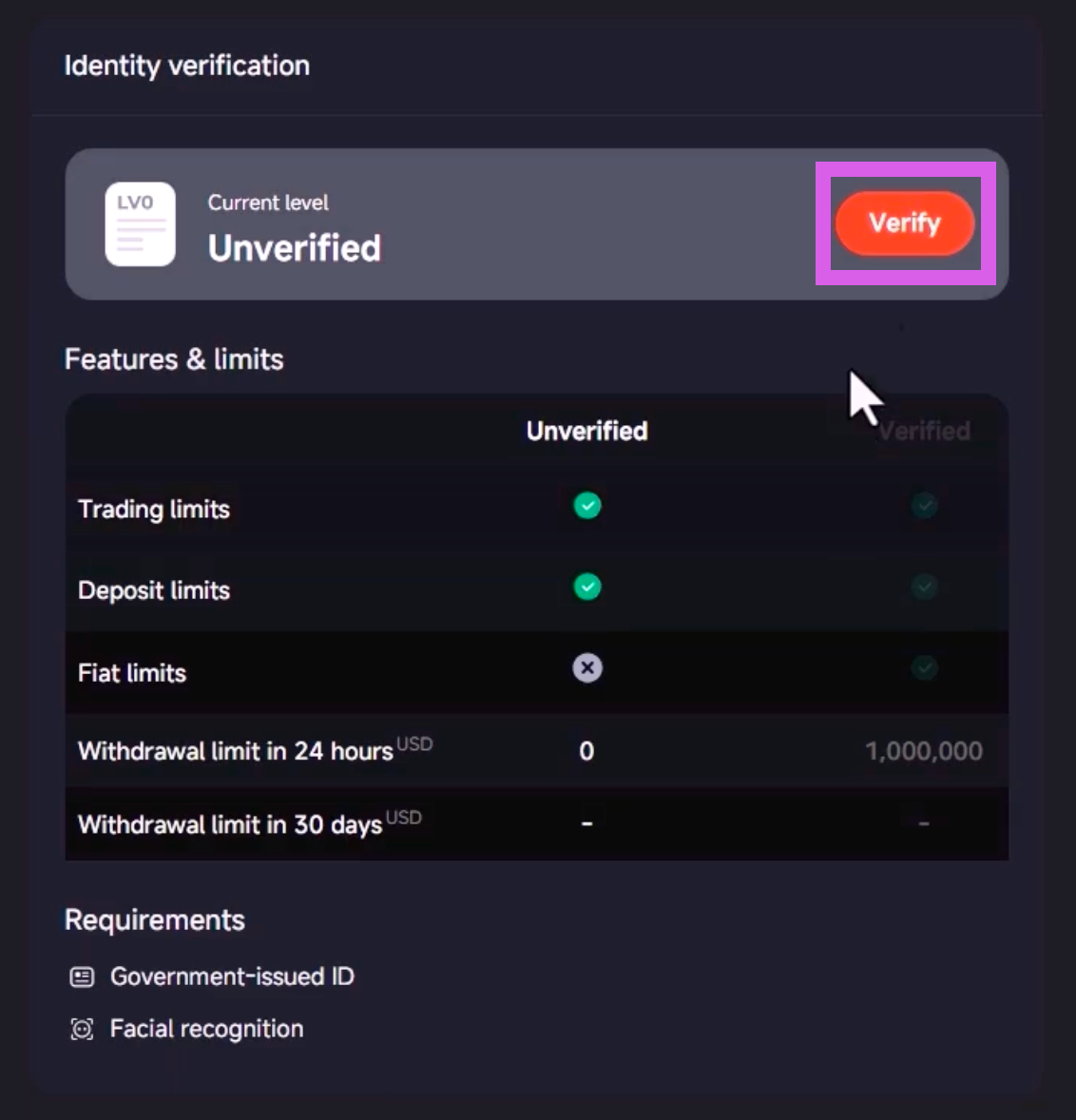
Click the [Verify] button under Identity Verification.
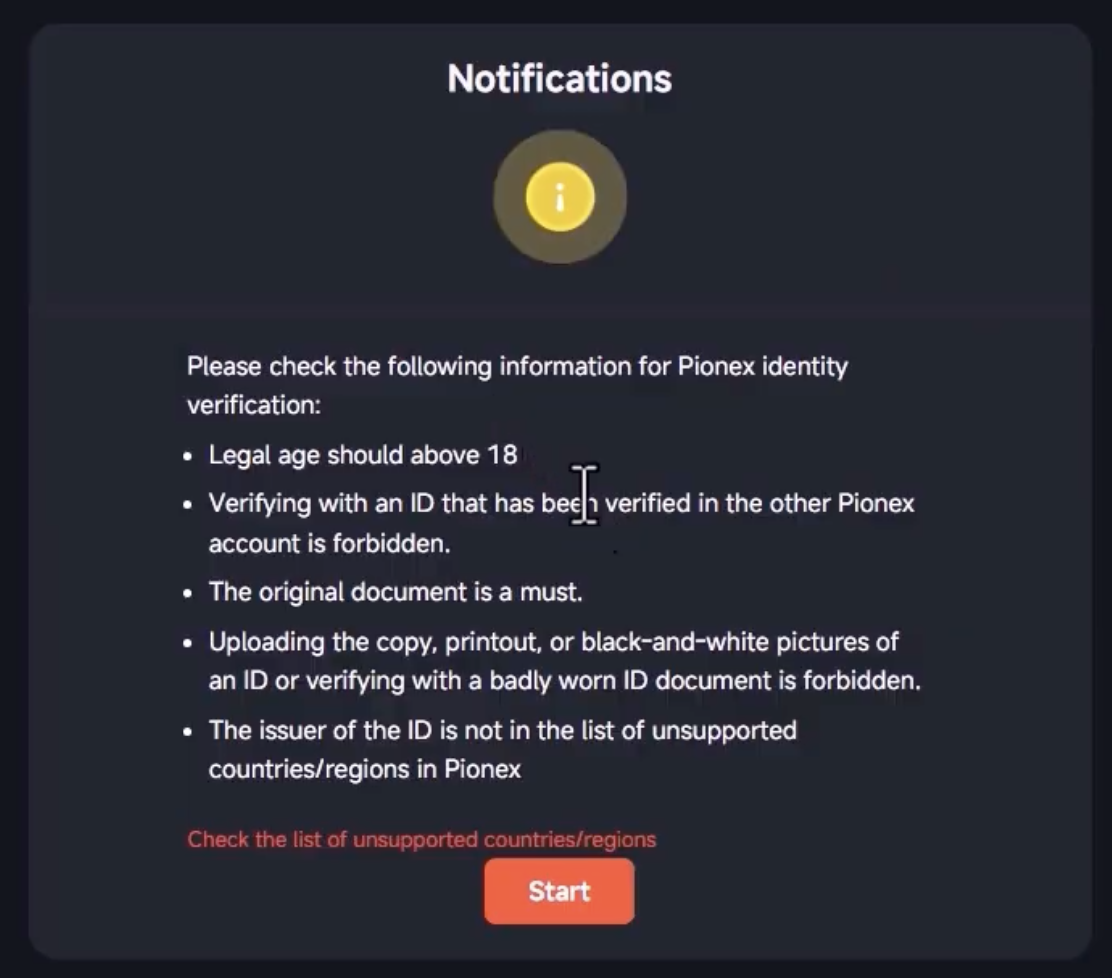
Review the precautions and click the [Start] button.
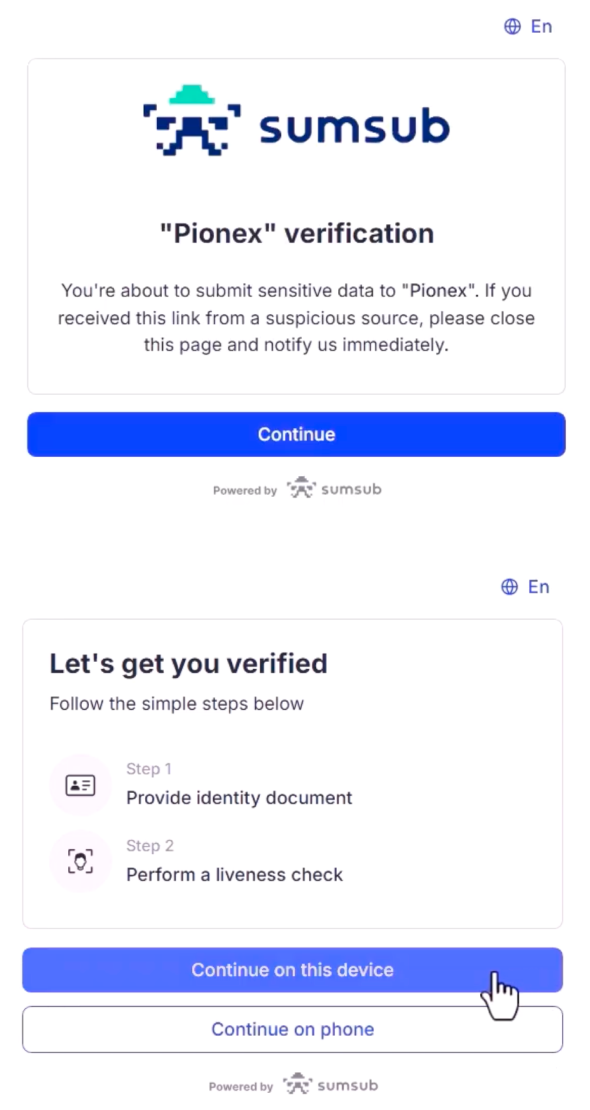
Click [Continue] → [Continue on this device] to proceed.
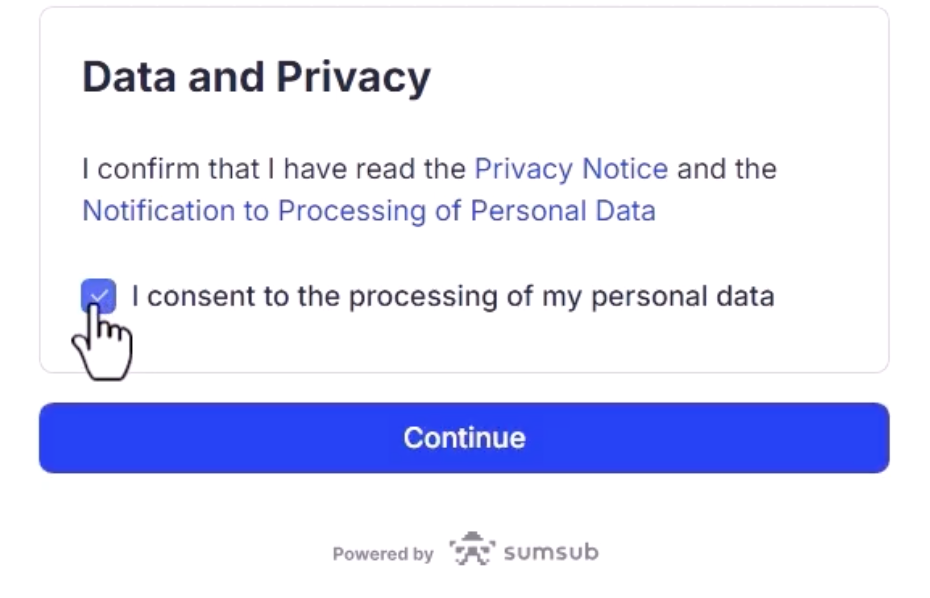
Agree to the terms and continue.
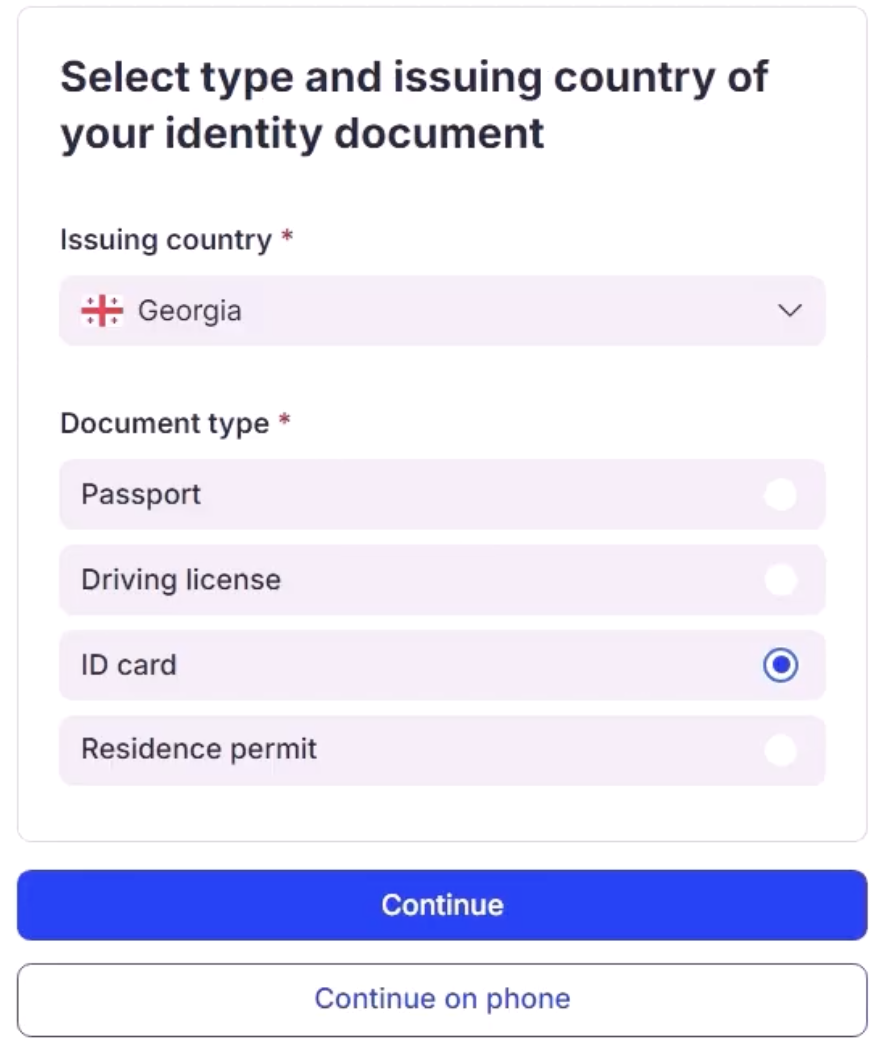
You can proceed with identity verification by selecting one of the following: ID card, Driver's license, or Passport.
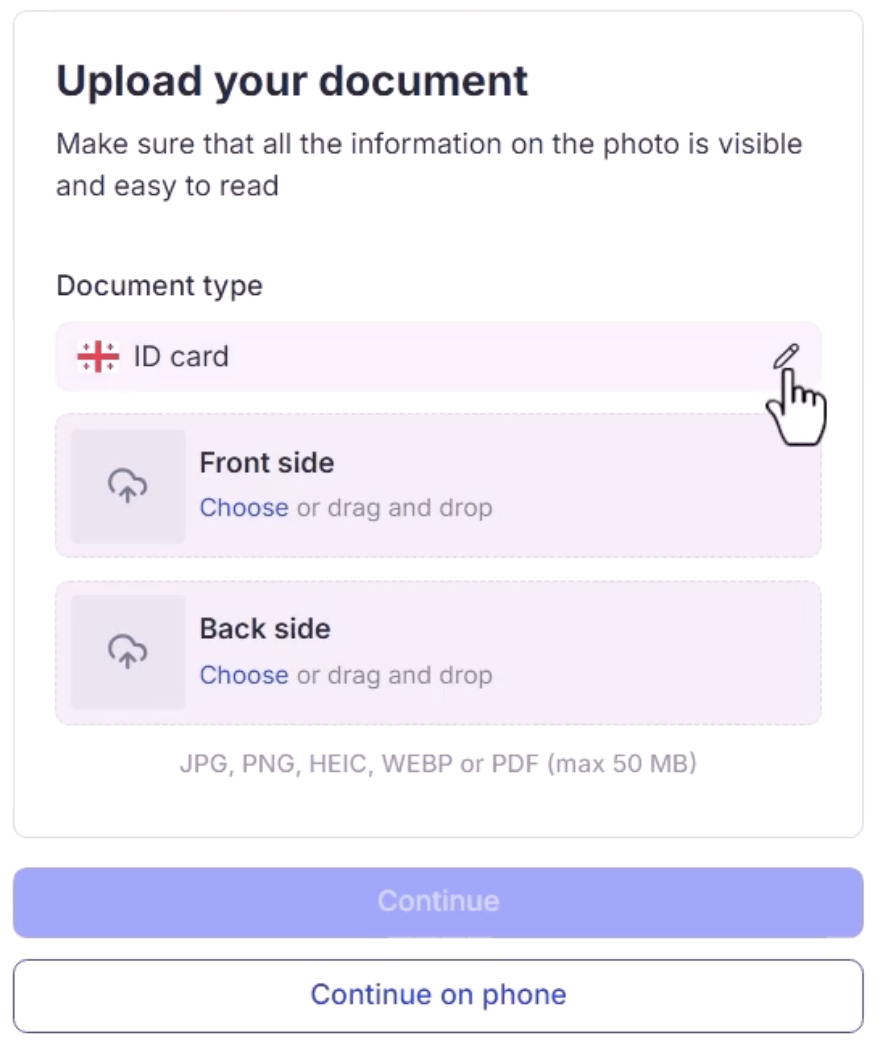
Please take photos of the front and back of your ID. Low-resolution images may cause delays in verification.
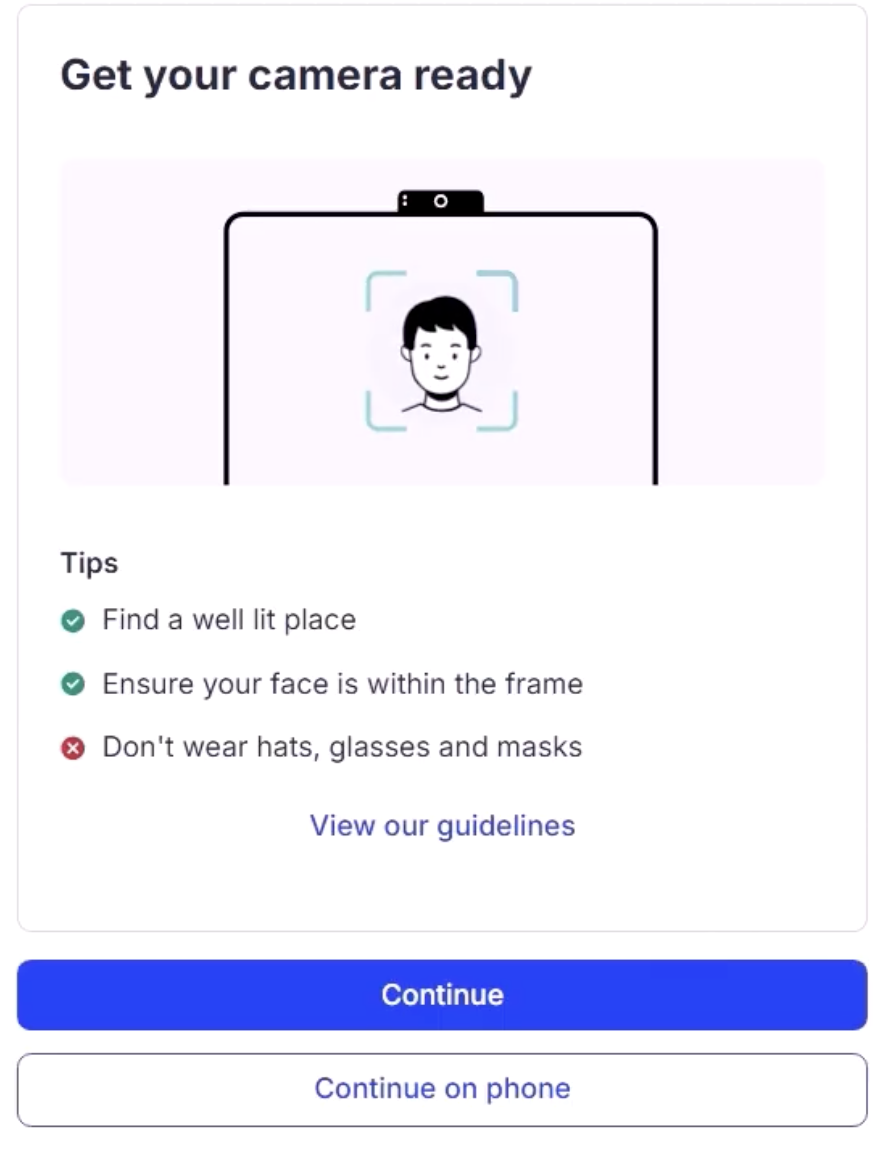
Please complete the Face Verification.
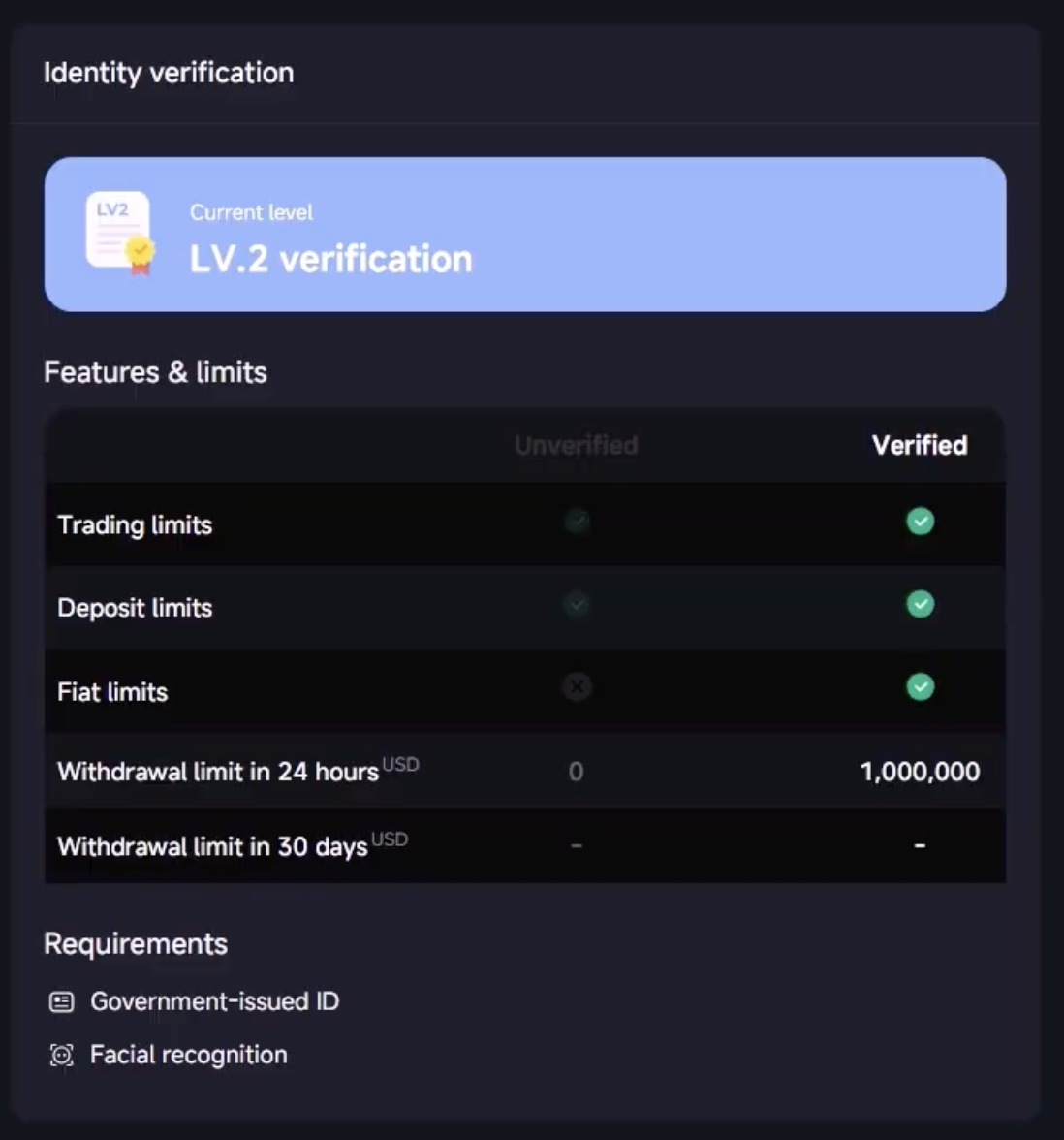
A "KYC Verification Complete" message will be displayed upon approval.
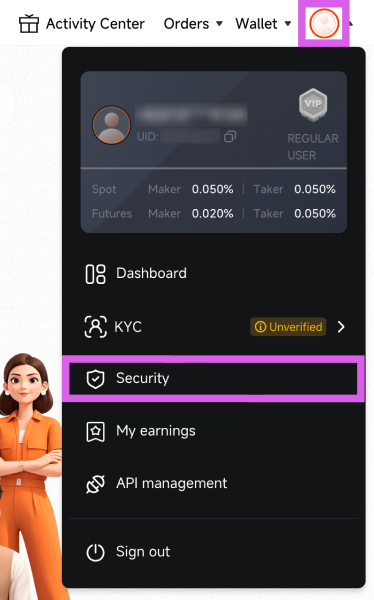
Click the person icon at the top and go to Security.
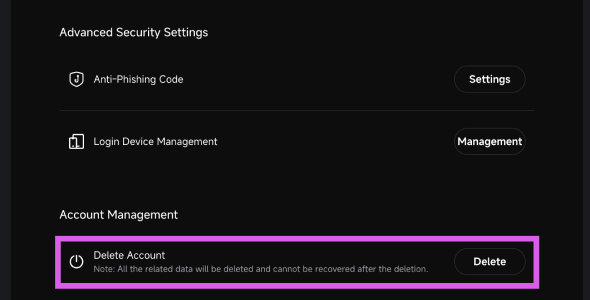
Scroll to the bottom and select the [Delete] button under "Delete Account."
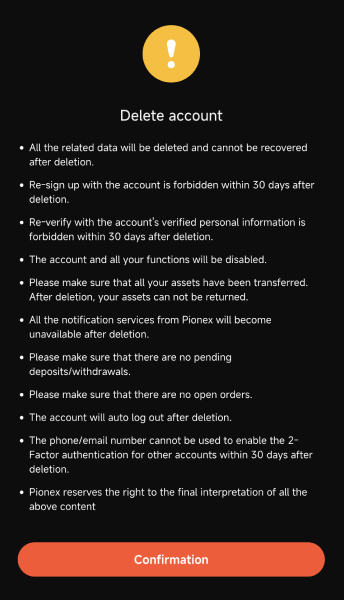
Select [Confirmation] on the account deletion information screen.
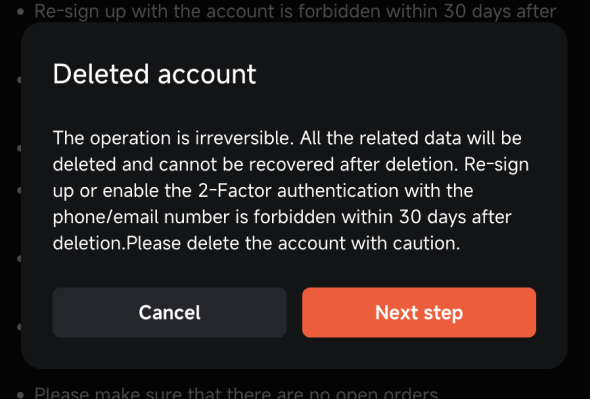
Select [Next step] from the pop-up.
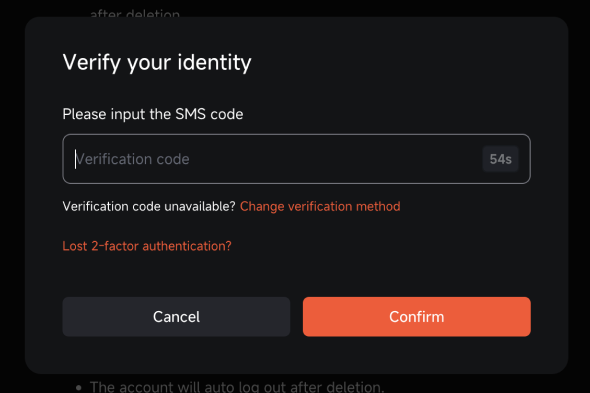
Proceed with the withdrawal verification using the method you used for registration.